Troubleshooting Carv 2
Find solutions for issues with your Carv 2 Sensors, including setup, battery pack and data issues.
Last updated 8 months ago
Setup
If you’re not able to pair your sensors, please try the following:
If you’re not able to pair your sensors, please try the following:
Plug the USB-C charger into your device 3 times in quick succession, a white LED should turn on followed by the charging LED. This will reset your device, please repeat this on both devices.
In the app, select the three dots found at the bottom right-hand corner of your screen.
Once there, select the “Setup Carv” tab at the top of your screen.
Once both sensors appear in the setup screen, press the “Pair With Sensors” button at the bottom of the screen.
If those steps don’t work, please try the troubleshooting steps below:
Turn Bluetooth off in your phone settings and wait ~10 seconds; then turn Bluetooth on again and repeat the pairing process.
Restart your phone; then retry the pairing process.
Delete and re-download the Carv app. Please make sure you sync any new sessions before completing this step as any data which has not yet been uploaded will be lost. After re-downloading the app, please repeat the pairing process.
If you had previously had other sensors paired to your account you will need to forget these sensors before pairing the new sensors by following the steps below:
In the App, click the 3 dots found at the bottom right-hand corner of your screen
Select ‘Set Up Carv’ at the top of your screen
Select the cog symbol in the top right hand corner of your screen
Select the red ‘unpair’ button at the bottom of the screen, then click ‘Yes, Unpair’
Only One Sensor Shows As Paired In The App
Only One Sensor Shows As Paired In The App
If both Carv 2 sensors initially connect and display white flashing LEDs, but only one sensor is shown as paired in the app, it could be that one of your sensors is out of charge. Charge both and try again.
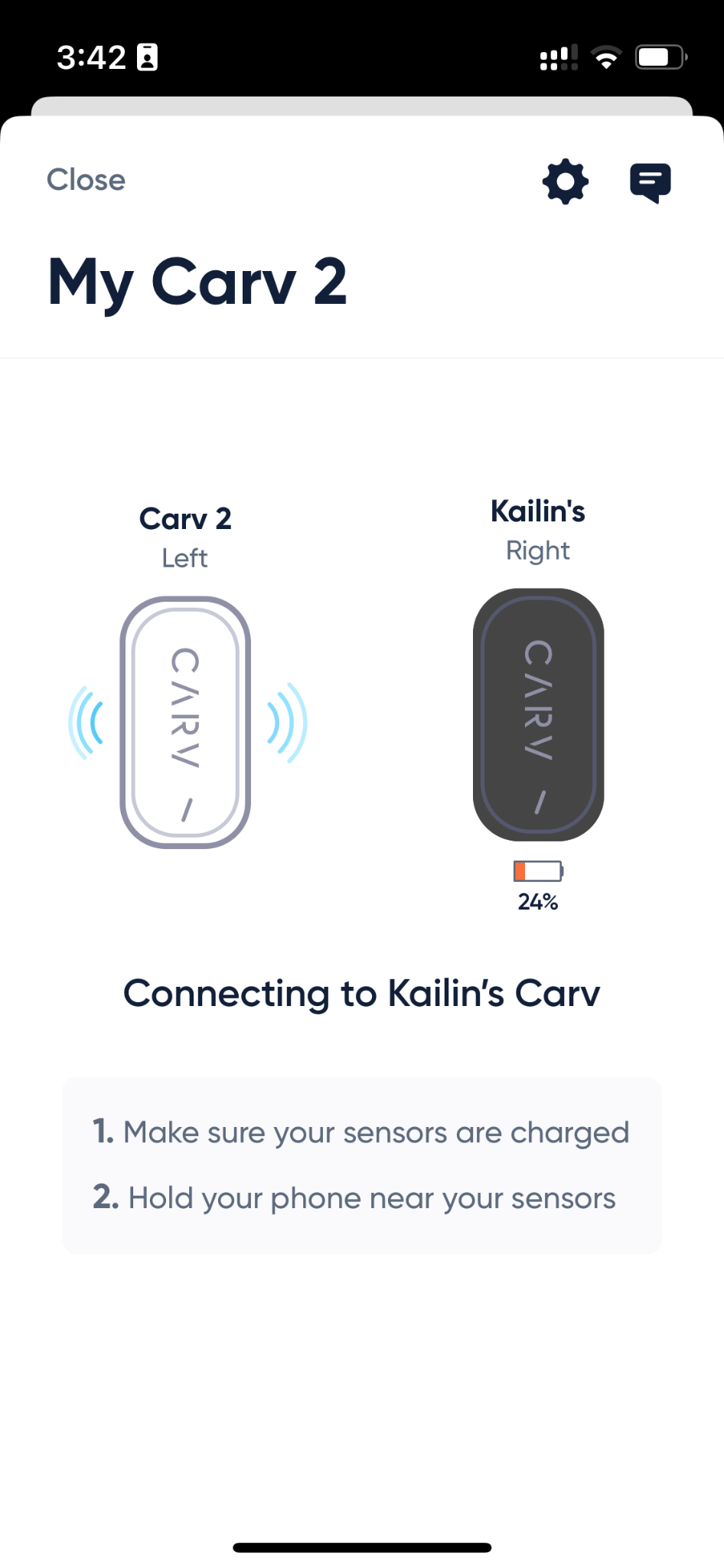
If this is not the case, please follow the steps below.
Please ensure that both sensors are charged before attempting the steps below:
Force close and reopen the app
Forget sensors and re-pair:
In the App, click the 3 dots found at the bottom right-hand corner of your screen
Select ‘Set Up Carv’ at the top of your screen
Select the cog symbol in the top right hand corner of your screen
Select the red ‘unpair’ button at the bottom of the screen, then click ‘Yes, Unpair’
Go back to the three dots and select the “Setup Carv” tab at the top of your screen.
Once both sensors appear in the setup screen, press the “Pair With Sensors” button at the bottom of the screen.
Reset sensors and re-pair:
Plug the USB-C charger into your device 3 times in quick succession, a white LED should turn on followed by the charging LED. This will reset your device, please repeat this on both devices.
In the app, select the three dots found at the bottom right-hand corner of your screen.
Once there, select the “Setup Carv” tab at the top of your screen.
Once both sensors appear in the setup screen, press the “Pair With Sensors” button at the bottom of the screen.
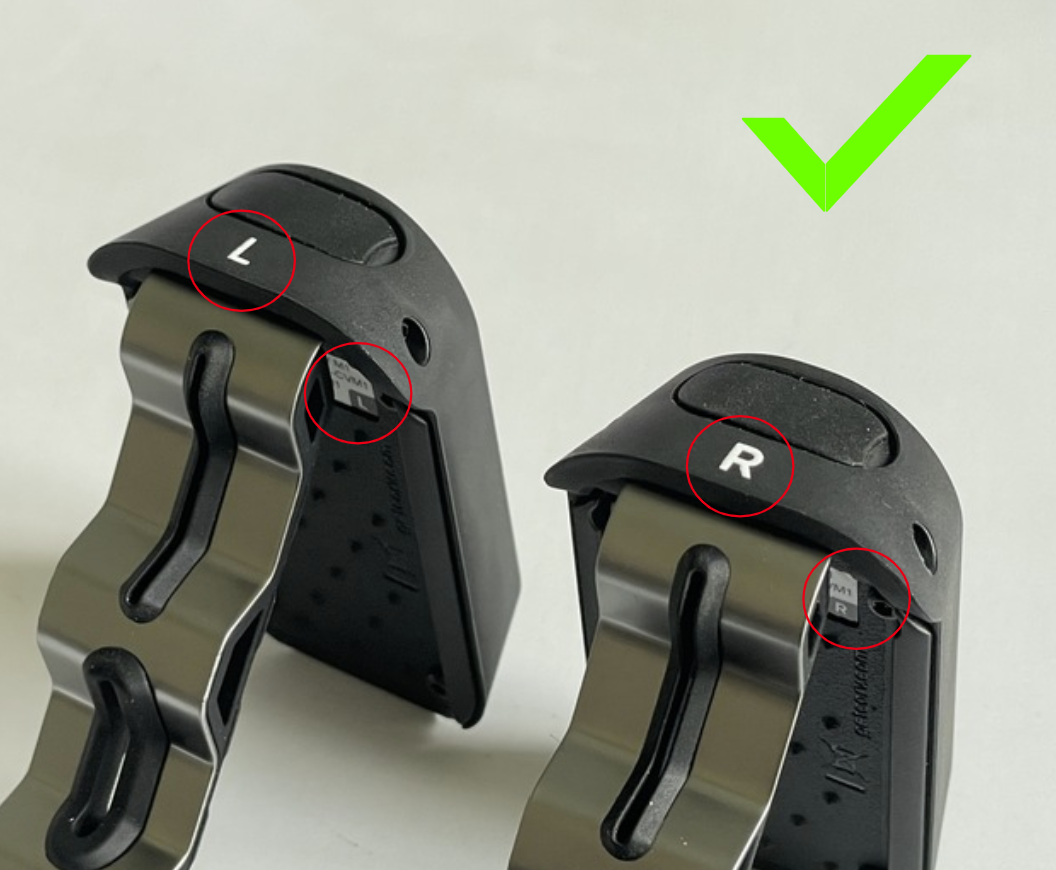
Make sure your sensors are different sides
Check that one sensor shows an ‘L’ by the charging port, and the other ‘R’
If this is not the case please contact support.
Make sure your serial numbers match your sensor’s sides
Lift the clip on the back of your Carv to locate a sticker displaying the serial number
Check the bottom left corner of each sticker for a ‘R’ or ‘L’ displayed
Ensure that the letter on the sticker correlates with the letter on the top of the sensors
If this is not the case please contact support.
If nothing works, please ensure your sensors are not being connected to someone else’s phone. You can do this by trying all above steps away from other Carv users.
If you are still having trouble please contact support.
My New Sensors Won’t Turn On
My New Sensors Won’t Turn On
If your newly delivered sensor’s LED lights don’t turn on and the device appears ‘dead’, please follow the steps below. Please note these are only applicable if you have never been able to turn on or pair your Carv 2 device before.
Plug your Carv 2 sensors on charge.
If the LED lights turn on and stay on once charged, you can now pair and set up your device successfully
If the LED lights only stay on during charging please contact support.
If the LEDs do not turn on, please try a new charging cable, USB adapter (plug) and power source
If the problem persists, please contact support.
Battery
My Carv 2 Sensors Won’t Pair After Summer Storage
My Carv 2 Sensors Won’t Pair After Summer Storage
If your sensors are flashing ONLY white whilst charging for the first time this season please try the following:
Reset Sensors
Plug the USB-C charger into your device 3 times in quick succession, a white LED should turn on followed by the charging LED. This will reset your device, please repeat this on both devices.
Please try this four times as it may not work the first time
Leave your sensors on charge for 24 hours
Get in contact with support
My Carv 2 Sensors Lose Charge at Different Rates
My Carv 2 Sensors Lose Charge at Different Rates
Your sensors charging at different rates is not a cause for concern. If one of your sensors will not charge past a certain point, there are a few things you can try.
Firstly, check that you are on latest app and firmware. You can see this by going to the app/google play store, and by pairing the sensors and checking if the app prompts you to update the firmware. If yes:
1. Please try using a different power socket, plug and USB-C wire if possible, as this has fixed the issue for some users.
2. Please complete a hard reset of your sensors:
Plug in your sensor and then un-plug and re-plug 3 times in quick succession. You can do this one at a time. A white LED should turn on followed by the charging LED, please make sure you see this to confirm you have reset them.
Re-pair your sensors in the app.
3. Try charging it for a longer period of time e.g. overnight.
If you have any trouble completing these steps, or if the issue persists please contact support.
My Carv 2 Sensors Lose Charge in Deep Sleep
My Carv 2 Sensors Lose Charge in Deep Sleep
Your sensors will continue to use charge in deep sleep, if they are fully charged they will take 7-8 weeks to fully discharge. You need to wake your sensors from deep sleep using a charging cable.
My Carv 2 Sensors Won’t Charge To 100%
My Carv 2 Sensors Won’t Charge To 100%
If you can pair your devices (this can be done whilst the sensors are charging if necessary), and your firmware is up to date, please try the following steps before contacting support.
Ensure you are charging your device at an appropriate temperature
not somewhere too cold (e.g. outside), or somewhere too hot (e.g. near or whilst using boot dryers)
Try different chargers, cables, USB Adapters and wall sockets to charge your sensors
Charge your sensors for over 5 hours
If the issue persists, please contact support.
Data/Firmware
My Carv 2 Sensors Are Stuck In A Firmware Update
My Carv 2 Sensors Are Stuck In A Firmware Update
If you are able to pair your devices but unable to update the firmware, please follow the steps below:
Ensure you are connected to wifi or data
Ensure your Carv app is updated to the latest version
Force quit and reopen the Carv app. Retry updating the firmware.
Reset your sensors as below:
Select the three dots in the bottom right hand corner of your screen
Select the tab with a picture of your Carv units at the top of your screen
Press the settings icon at the top right of your screen
Click ‘reset sensors’, then click the blue ‘Reset’ button
If none of the above steps work please try:
Restarting your phone; then retrying the firmware update
Delete and re-download the Carv app, then retrying the firmware update
Please make sure you sync any new sessions before completing this step as any data which has not yet been uploaded will be lost
Try updating the firmware from a different phone
If you are still having trouble please contact support.
Lost/ damaged sensors
My LED Light Is Broken
My LED Light Is Broken
If you are able to pair the impacted sensor to your phone please do so and follow the steps below:
Charge your device
If the LED lights turn ON, please contact support.
If the LED light remains OFF, please go to the set up screen in your app (More > Set Up Carv)
If you can see the battery percentage increasing in the set up screen please perform a reset of the impacted device by Plugging the USB-C charger into your device 3 times in quick succession. The LED should turn on and your issue should be fixed!
If the LED remains off, please contact support.
My Dustcover Has Fallen Off
My Dustcover Has Fallen Off
If your dust cover has fallen off - don’t worry! The Carv USB port is completely waterproof, so you can still use your sensor as normal.
My Clip Grip Has Fallen Off
My Clip Grip Has Fallen Off
If your clip grip has fallen off you can try to reinstall it using the steps below:
With the clip open, align the Clip Grip under the clip so the wide slots on each part line up
Close the clip to the second click.
Open the clip, use your finger to press the bottom of the Clip Grip to push the slots in the Clip Grip the remainder of the way through the clip
You may need to use a pen to push the narrow slot through. Push from underneath (still on the diagonal surface) until the edge pops through
If you have lost your Clip Grip:
Try installing your sensor to the second click on your power strap without the grip.
If the sensor is tight and doesn’t move around you can continue to use your Carv 2, ensuring you close your clip to 2 clicks each time you use.
If this is not the case please contact support.
My Clip Is Damaged
My Clip Is Damaged
If you can still close the clip to 2 clicks, with the sensor tightly fitting around your power strap you can continue to use Carv 2 on the slopes.
If this isn’t possible please contact support.
My Clip Has Fallen Off
My Clip Has Fallen Off
If the pin holding your clip to your sensor has come loose or got lost, resulting in your clip to fall off, please contact support.
Contact us
If you run into any problems while setting up or using your Carv 2, the Carv app offers in-app support.
The Carv app is the fastest way for us to help you as we are able to review your session data immediately.
You can also reach out to our support team via email or over the phone. See Contacting Our Team
Was this helpful?
Still need help? Share an idea